






Classic Solitaire on Mobile: Setup & Accessibility-Blog
Playing Classic Solitaire on Mobile: Comfort and Accessibility Guide
Classic Solitaire is a simple game. It should stay simple on a phone or tablet. The right setup helps you see cards, tap with ease, and play longer without strain.
This guide covers the classic solitaire app accessibility settings that matter most. It also helps seniors on tablets, low-vision players, and anyone who needs easier controls. You can play Classic Solitaire on a phone, tablet, or desktop.
Use these tips to make each game comfortable. You do not need special skills. You just need a few minutes to set up your device and app.
Getting Started: Installing on iOS and Android
Start by installing a trusted Classic Solitaire app. The steps are almost the same on iPhone, iPad, and Android devices.
Open your app store
On iPhone or iPad, open the App Store. On Android, open Google Play.
Search for Classic Solitaire
Type the game name in the search bar. Choose a well-known app with good recent reviews.
Check the app details
Look for large cards, high contrast, and left-hand mode. Read a few reviews from older players if you can.
Install the app
Tap Install or Get. Wait for the download to finish. Then open the app.
Try a practice game
Play one easy round first. Use this time to test card size, contrast, and tap controls.
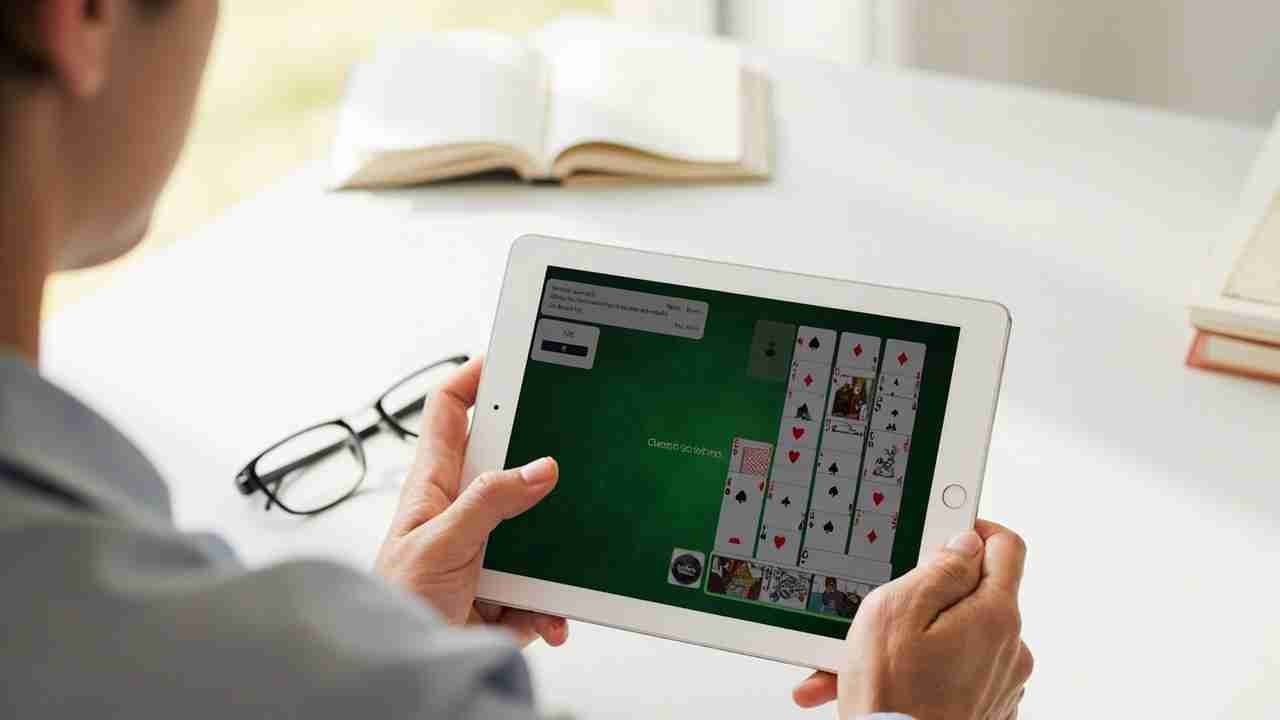
On a tablet, turn the screen to the angle you like best. Many players prefer landscape mode for wider card rows. Keep the tablet on a stand if holding it causes hand tiredness.
Pro Tip: Set up your app before you start a real game. Change card size, contrast, and controls first. Then play one easy round to check comfort.
Display Settings That Matter: Large Cards and High Contrast
Display settings do most of the work for comfort. Open the app settings menu and look for these options.
- Large cards: Choose the biggest card size that still fits the board. A large print solitaire app should show clear numbers and suits. You should not need to squint.
- High contrast: Turn on high contrast if cards blend into the table. Strong color and dark outlines help low-vision players.
- Simple card faces: Pick clean symbols over fancy art. Clear red and black suits are easier to read.
- Larger text: Increase text size for menus and labels. Use your phone or tablet display settings too.
- Reduced motion: Turn off card flip effects if motion bothers your eyes. Fast, still changes are often easier to follow.
Test each change at your normal playing distance. Do not hold the screen too close. A bright screen can cause glare, so adjust brightness to match the room.
Pro Tip: Play one round after each change. Keep only the settings that help. More options are not always better.
Left-Handed Mode and One-Handed Play
Left-handed players should not have to reach across the screen. A good app offers left handed solitaire mode. This moves tap targets, menus, and buttons to the left side.
- Swap button sides: Look for a left-hand layout in settings.
- One-handed play: Use tap-to-move controls so you can play with one thumb.
- Tablet reach: On a large tablet, keep the main buttons near your dominant hand.
- Stable grip: Use a stand or case. This reduces wrist strain and helps you tap safely.
Some apps call this left-hand layout or one-hand mode. If you cannot find it, check the help section. You can also contact the app maker.
Important: Not every Classic Solitaire app offers left handed solitaire mode. Check before you install if this feature is a must for you.
Tap-to-Move vs. Drag Controls: Which Is Right for You?
Classic Solitaire usually offers two control styles. Tap-to-move is often better for seniors and players with dexterity needs. Drag controls can feel natural if you have steady hands.
| Control style | Best for | How it works | Tip |
|---|---|---|---|
| Tap-to-move | Low-vision players, shaky hands, one-handed play | Tap a card, then tap the destination. The app moves the card. | Turn on auto-move for clear plays. |
| Drag-and-drop | Players used to mouse-style play | Press a card and slide it to a new pile. | Use larger cards and a slower drag. |
| One-tap auto-move | Fast play with less hand movement | Tap a card and the app sends it to a valid spot. | Check the move before you tap if you like control. |
Try both for one game. Choose the style that feels calm. Stop if your hand hurts or if you make repeat errors.
Pro Tip: Tap-to-move works well with large cards. You can tap near the card, not exactly on it, in many apps.
Reducing Eye Strain During Long Sessions
Long games can tire your eyes. A few habits help you play with less strain.
- Follow the 20-20-20 rule. Every 20 minutes, look at something 20 feet away for 20 seconds.
- Keep the screen at eye level. Use a stand on a table.
- Play in a room with soft light. Avoid a dark room with a bright screen.
- Use larger cards and high contrast. This reduces extra focus.
- Take a short break after each game or two.
- Blink often. Dry eyes can make the screen feel harsh.
For tablet play, sit back and rest the device on a stand. This is a key comfort tip for solitaire for seniors on tablet. It keeps the screen steady and lowers neck strain.
Important: Stop playing if you feel eye pain, headache, or hand numbness. Rest and talk to a health professional if symptoms continue.
Offline Play, Battery Tips, and Data-Free Gaming
Classic Solitaire is a light game. Many apps work offline and use little data. That makes it a good choice for travel, waiting rooms, and home play.
- Offline play: Check the app description for offline mode. Download the game while you have Wi-Fi.
- Airplane mode: Turn it on to save battery and avoid ads that need data.
- Battery saver: Use your device battery saver for long trips.
- Close extra apps: This can help older phones run smoother.
- Lower brightness: A dim screen uses less power and feels easier on the eyes.
Some free apps show ads. Ads may need data. If you want a data-free game, test the app in airplane mode before you travel. A paid app or a no-ads setting can also help.
Pro Tip: Charge your device before a long session. Keep a charging cable nearby if you play for more than an hour.
Accessibility Checklist for Seniors and Low-Vision Players
Use this checklist before you start a long game.
- Turn on large cards in the app.
- Turn on high contrast and simple card faces.
- Check for left handed solitaire mode.
- Choose tap-to-move or one-tap controls.
- Increase text size on your device.
- Set screen brightness for your room.
- Use a stand for tablet play.
- Test offline mode if you travel.
- Play one practice game to check comfort.
These small changes can make a big difference. A large print solitaire app with clear controls helps you focus on the game, not the screen.
Frequently Asked Questions
Is Classic Solitaire easy to play on a tablet?
Yes. Use large cards, a stand, and tap-to-move controls. Landscape mode often gives a wider view.
Can I play with my left hand only?
Yes, if the app has left handed solitaire mode. Turn it on and use tap-to-move controls for one-handed play.
Does Classic Solitaire need the internet?
Many Classic Solitaire apps work offline. Check the app details and test with airplane mode before you travel.