






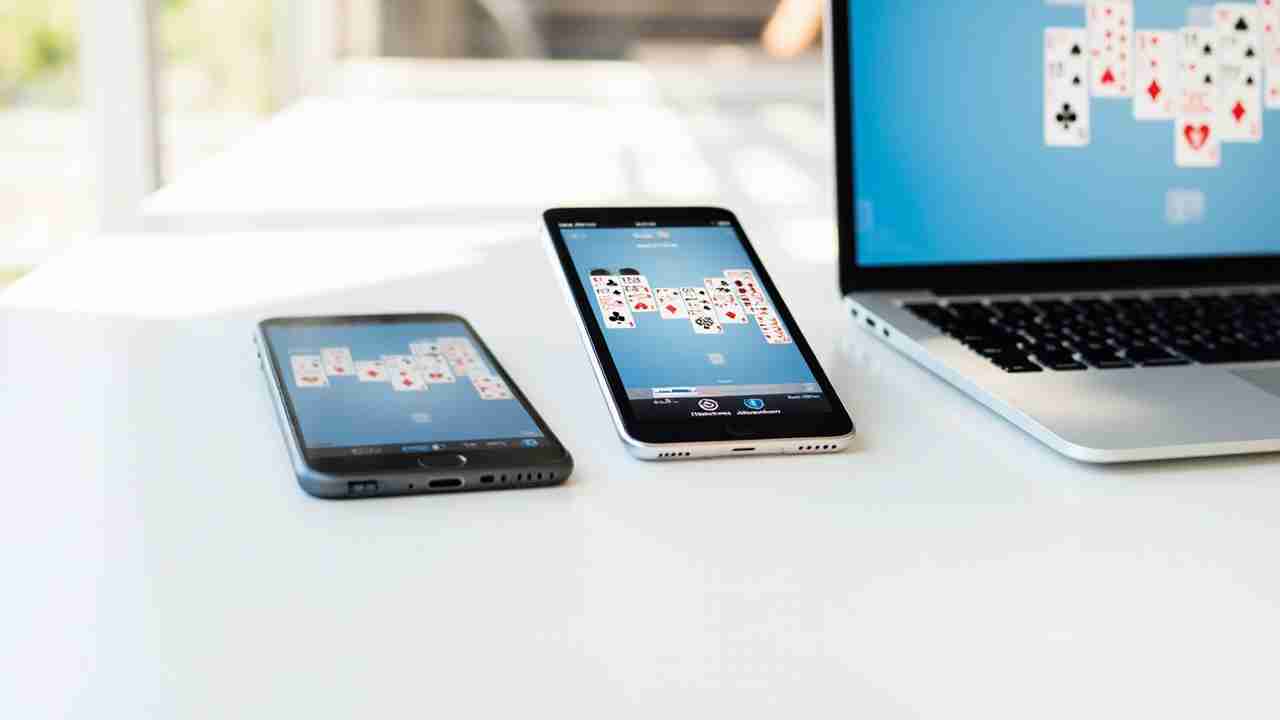
Play FreeCell Solitaire Free Online on Any Device-Blog
Play FreeCell Solitaire Free Online: Device & Accessibility Guide
FreeCell is one of the most loved solitaire games. You can play it right in your web browser. No download. No sign-up. No waiting.
This guide shows you how to play FreeCell Solitaire free online with no download on any device. It also covers phone tips, desktop shortcuts, and FreeCell Solitaire accessibility settings like FreeCell large print cards for low-vision players.
Big screen or small screen, you can start a game in seconds. Open our FreeCell Solitaire game page and pick a deal.
How to Play FreeCell Online With No Download
FreeCell runs in your browser. That means nothing is installed on your device. You only need an internet connection and a modern browser like Chrome, Safari, Firefox, or Edge.
Open Your Browser
Tap or click your browser icon. Type the site address and press Go.
Start a FreeCell Game
Select FreeCell from the game list. The cards deal right away. Some sites let you pick a game number.
Learn the Board
You get 52 cards, 8 columns, 4 free cells, and 4 foundations. Every card is face up. Nothing is hidden.
Move Cards Around
Stack cards down in alternating colors. A red 6 goes on a black 7. Only the top card of a column can move.
Use the Free Cells
The four free cells hold one card each. They are your parking spots when you get stuck.
Build the Foundations
Send aces up first. Then stack each suit from Ace to King. Some sites fill the foundations for you with one tap.
Win the Game
When all 52 cards sit on the four foundations, you win. Most sites show your time and move count.
| Board Area | What It Does | Limit |
|---|---|---|
| Columns | Holds cards in play. Build down in alternating colors. | 8 columns |
| Free cells | Holds single cards in reserve. | 4 cards total |
| Foundations | Stacks cards by suit from Ace to King. | 4 piles |
| Deck | All cards are dealt at the start. | 52 cards |
Pro Tip: Keep at least one free cell open. Empty cells let you move longer stacks of cards. A full board of free cells usually means trouble.
FreeCell on Mobile: Tips for Phones and Tablets
You can play FreeCell on your phone without an app store download. The browser version works well. Small screens just need a few smart habits.
- Turn your phone sideways. Landscape mode gives the cards more room.
- Tap once to select, tap again to place. This cuts down on misdrops.
- Look for a double-tap shortcut. Many sites send a card to a free cell or foundation with two quick taps.
- Zoom in if cards feel small. Pinch to zoom in any mobile browser.
- Add the page to your home screen. It opens like an app, but there is still no download.
- Keep your browser updated. Newer versions run games smoother.
- Play offline? Not always. Some sites need a connection, so check before a long trip.
A tablet is the sweet spot for many players. The cards are bigger than on a phone, and touch controls feel natural. You can rest it on your lap or a stand and play at your own pace.
Desktop Play: Mouse Controls and Keyboard Shortcuts
On a laptop or desktop, FreeCell is fast and precise. Click a card to pick it up. Click a column or free cell to drop it.
Many online versions also support keyboard shortcuts. These save time and reduce wrist strain. Shortcuts can differ by site, so test them in a new game.
| Action | Common Shortcut |
|---|---|
| New game | N or F2 |
| Undo last move | U or Ctrl + Z |
| Get a hint | H |
| Move card to foundation | Enter or Space |
| Move between columns | Arrow keys |
| Restart the same deal | R |
Keyboard support matters for players who cannot use a mouse for long periods. It also helps anyone who wants to play faster.
Accessibility Settings: Large Cards, High Contrast, and More
Good FreeCell Solitaire accessibility settings make the game easier on the eyes. Low-vision players, seniors, and anyone playing in bright light can all benefit.
Here is what to look for in the settings menu.
- FreeCell large print cards. Bigger cards and bigger numbers. This is the most requested option.
- High contrast mode. Stronger red and black suits against a plain background.
- Four-color deck. Each suit gets its own color. Great for colorblind players.
- Larger buttons and text. Easier to tap the right control.
- Reduced motion. Turns off flipping and sliding effects.
- Sound on or off. Some players like audio cues. Others find them distracting.
- Screen reader labels. Card names and suits read out loud.
Open the Settings Menu
Look for a gear icon or a menu button on the game screen.
Choose Large Cards
Turn on large print or big card size. The board should resize right away.
Turn On High Contrast
Pick high contrast or a four-color deck if suits are hard to tell apart.
Adjust Browser Zoom
If the game has no size option, use your browser zoom. Press Ctrl and + on Windows, or Command and + on Mac. On mobile, pinch to zoom.
Important: Some sites do not save your display settings. If your cards shrink back to normal after a reload, check for a Save or Apply button. You may need to reset the options each visit.
Saving Progress and Syncing Across Devices
Many free online FreeCell games save your progress in the browser itself. Close the tab, come back later, and your deal may still be there.
This kind of save is tied to one browser on one device. Clear your cookies or browsing data and the saved game can vanish. That is normal.
Some sites offer a free account. Sign in and your stats, win streak, and settings can follow you from phone to tablet to desktop. If you play on more than one device, an account is the simplest fix.
- Use the same browser each time for local saves.
- Bookmark the game page so you do not lose it.
- Finish a long game before clearing browser data.
- No account? Note the game number so you can replay that exact deal.
Troubleshooting Common FreeCell App Issues
Most problems have simple fixes. Try these before you give up on a game.
- Cards will not move. Check the color and rank. You can only stack down in alternating colors.
- The page looks frozen. Refresh the page. Your deal may reload.
- Cards are too small. Use browser zoom or turn on large print cards.
- No sound. Check your device volume and the game's sound toggle.
- Progress is gone. Your browser may have cleared its cache. Start a new game or sign in next time.
- Slow play or lag. Close extra tabs and update your browser.
- Too many ads. Try full screen mode or a different browser.
Pro Tip: Stuck on a hard deal? Use undo instead of restarting. Undo shows you where the plan fell apart, and you learn faster that way.
Frequently Asked Questions
Is FreeCell Solitaire really free to play online?
Yes. Most browser versions are free. You do not need to download anything or create an account. Some sites show ads, but the game itself costs nothing.
Can I play FreeCell on my phone without an app?
Yes. Open your mobile browser and go to the game page. Tap to move cards. For the best view, turn your phone sideways and use large print cards if the numbers look small.
Do large print cards change the rules of the game?
No. Large print cards only change how the cards look. The rules stay the same. You still build down in alternating colors and up the foundations by suit.