






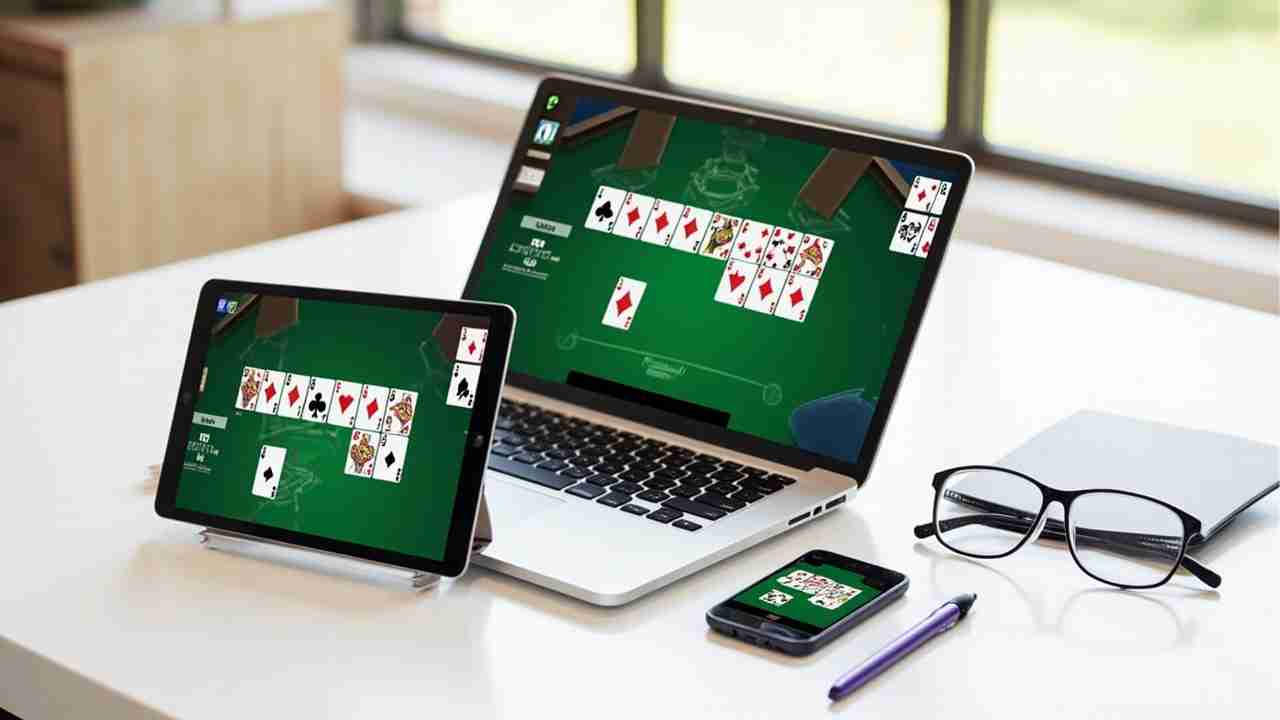
Spider Solitaire for Seniors: Devices & Accessibility-Blog
Spider Solitaire for Seniors: The Complete Device & Accessibility Guide
Spider Solitaire is a classic card game. It is fun, quiet, and good for focus. But small cards and tiny buttons can make it hard to play. This guide helps older adults and low-vision players set up a comfortable game. You will learn about spider solitaire large print cards, display settings, and the best devices.
Use this guide if you play on a tablet, computer, or phone. It also helps caregivers who set up devices for someone else.
- Choose the right screen size.
- Make cards bigger.
- Use high-contrast colors.
- Find easier touch controls.
- Fix common tech problems.
Tablet vs. Computer vs. Phone: Which Is Best for You?
Each device has good points and bad points. The right one depends on your eyes, hands, and where you play.
| Device | Screen Size | Touch Control | Best For |
|---|---|---|---|
| Tablet | Large | Yes | Easy reading and tap-to-move play |
| Laptop or desktop | Large | No, uses mouse | Precise moves and browser zoom |
| Smartphone | Small | Yes | Quick games on the go |
For most seniors, a tablet is the best balance. It has a big screen and simple touch. A computer is also good if you like a mouse. A phone works, but cards can be too small.
Pro Tip: A tablet is often the best choice for Spider Solitaire for seniors because cards are larger and touch is easy.
Choosing Large-Print Cards and High-Contrast Themes
Spider Solitaire large print means the cards and numbers are easy to see. Many games have a large cards or big cards option. Turn it on. Then pick a high-contrast theme.
- Use a light background with dark cards, or a dark background with light cards.
- Make red and black suits easy to tell apart.
- Look for large rank numbers in the card corners.
- Pick simple card faces with no busy art.
- Use buttons with words, not just icons.
Important: Avoid themes with low contrast. Fancy backgrounds can hide cards. They can also make suit colors hard to see.
Pro Tip: If the game has a large print or big cards setting, turn it on before you start. Changing it later can mix up the card layout.
Zoom, Font Size, and Display Settings for Low Vision
Use two layers of zoom. First, change your device display settings. Second, use the game or browser zoom. These spider solitaire accessibility settings can make play much easier.
Open device display settings
Go to Settings, then Display. On some devices it is called Display and Brightness.
Increase text size and display zoom
Move the text size slider up. Turn on display zoom if your device has it. Test the menu size.
Turn on high contrast
Look for Increase Contrast or High Contrast Text. This helps separate cards from the table.
Use the game zoom
Open the game. Look for a plus sign, a magnifying glass, or a zoom menu. Zoom in one step at a time.
Test a card move
Move one card. If cards are cut off, zoom out one step. Make sure all piles stay on screen.
On a computer, hold Ctrl and press plus to zoom in a browser. On a Mac, hold Command and press plus. Use the browser zoom menu to reset.
Pro Tip: Write down your best settings. Then you can set up a new device the same way.
Touchscreen Tips and Using a Stylus for Easier Moves
A touchscreen can be easier than a mouse. But you need the right touch style. These tips help you avoid extra taps and mistakes.
- Tap a card, then tap where it should go.
- Use a stylus if fingers are large or shaky.
- Rest your hand on the screen edge, not on the cards.
- Clean the screen. Grease can block taps.
- Use a stand to raise the tablet to eye level.
- Turn on tap to move if the game offers it.
A stylus with a soft tip works well. It gives more control than a finger. It can reduce wrong moves. It also keeps the screen cleaner.
Arthritis-Friendly Play: Tap vs. Drag Controls
Arthritis can make dragging hard. Look for tap controls. Tap-to-move lets you select a card and then select the target pile. This takes less hand strength.
- Choose tap-to-move over drag-and-drop.
- Use a stylus to reduce finger pressure.
- Keep the device close to your body.
- Use a stand or a case with a grip.
- Take short breaks between games.
Important: Long drags can cause pain. If the game only supports drag, try a computer mouse. A mouse can be easier on the hands than a touch drag.
Recommended Tablets and Devices for Senior Players
The best tablet for spider solitaire has a large, bright screen and a light body. It should also have good accessibility settings. A good spider solitaire app for seniors should have large cards and simple controls.
- 10-inch or larger screen.
- 1920 by 1200 resolution or higher.
- Bright display with good contrast.
- Light weight under 1.5 pounds if possible.
- Long battery life.
- Support for text size, zoom, and high contrast.
- A case with a stand.
- A comfortable stylus.
Popular choices include the Apple iPad, Samsung Galaxy Tab, and Amazon Fire HD. Check the display settings before you buy. Ask a caregiver to test the game on the device first.
Pro Tip: Bring your reading glasses to the store. Test the game at the same distance you use at home.
Playing Online for Free Without Downloads
You do not need to download an app to play. Many sites let you play in a web browser. This is good for seniors because there are no installs or updates.
Try our free Spider Solitaire game at play free Spider Solitaire online. It works on tablets and computers. Use browser zoom to make the cards larger.
- No download or install.
- No account needed.
- No storage used on your device.
- Easy to open from a bookmark.
Pro Tip: Bookmark the game page. Then it is one tap away.
Troubleshooting Common Tech Frustrations
Tech problems can be frustrating. Most have simple fixes. Try these steps before you ask for help.
- Cards are too small: Use browser zoom or game zoom.
- Buttons do not respond: Clean the screen and restart the browser.
- Game is slow: Close other tabs and apps.
- Can't find settings: Look for a gear icon or three dots.
- Screen is too bright: Lower brightness or turn on night mode.
- Moves go wrong: Switch to tap-to-move.
Important: Do not tap hard on the screen. Hard taps can damage the glass or cause errors.
Frequently Asked Questions
What is the best tablet for Spider Solitaire for seniors?
A 10-inch tablet with a bright screen and large text settings is a good choice. The iPad, Samsung Galaxy Tab, and Amazon Fire HD are common options. Look for a light device and a stand.
How do I make Spider Solitaire cards larger?
Turn on the game's large cards setting. Then use browser zoom or game zoom. You can also increase text size and display zoom in your device settings.
Can I play Spider Solitaire without downloading an app?
Yes. Many websites offer free Spider Solitaire in a browser. You can play on a tablet or computer without an install. Use browser zoom to make the cards easier to see.